How to Browse Cloudflare R2 Buckets on a Mac
Last updated October 23, 2026
There are four ways to browse Cloudflare R2 on a Mac. You can use the Cloudflare dashboard in a browser, a command-line tool (wrangler, rclone or the AWS CLI), a general S3 GUI client, or an app built only for R2, such as Buckotto. Which one fits depends mostly on how big your buckets are and whether you want to stay out of the terminal.
The options at a glance
| Option | Signs in with | Lists the objects in a bucket | Good for |
|---|---|---|---|
| Cloudflare dashboard | Your Cloudflare login | Yes | Quick looks in the browser |
| wrangler | Your Cloudflare login | No, buckets only | Bucket settings, single objects |
| rclone | R2 S3 keys | Yes | Bulk copies, migrations, sync |
| AWS CLI | R2 S3 keys | Yes | Existing AWS workflows |
| General S3 GUI client | R2 S3 keys | Yes | One app for several storage services |
| Buckotto | R2 S3 keys | Yes | A point-and-click R2 app for the Mac |
Everything except the dashboard and wrangler needs three values: your Account ID, an Access Key ID and a Secret Access Key. The credentials section near the end shows how to get them.
Option 1: the Cloudflare dashboard
The dashboard needs no setup. Cloudflare suggests it for quickly viewing and managing buckets and objects in the browser.
- Sign in to the Cloudflare dashboard and go to R2 object storage → Overview.
- Select a bucket to see its objects.
- Tick View prefixes as directories to group keys into folders. For example,
logs/jan.csvandlogs/feb.csvthen appear under alogs/folder.
Those folders are only a visual grouping. R2 stores keys in a flat namespace, and the / is just part of the key.
From the bucket view you can upload, download (the … menu on an object) and create folders. Since April 2026 you can also delete whole folders, or empty a bucket from its Settings tab. Each folder view has its own link, so you can send a teammate straight to it.
Option 2: the command line
Cloudflare’s CLI guide covers three tools: wrangler, rclone and the AWS CLI. Each one lists things a little differently.
wrangler
wrangler signs in with your Cloudflare account, so it needs no S3 keys. It can list your buckets, but its object commands are only get, put and delete. There is no wrangler command that lists the objects inside a bucket, so you need to know a key before you can fetch it.
npx wrangler login
npx wrangler r2 bucket list
npx wrangler r2 bucket info <bucket>
# fetch one object whose key you already know
npx wrangler r2 object get <bucket>/<key> --file ./<file-name> --remote
rclone
rclone talks to R2’s S3 API. Cloudflare asks for version 1.59 or later. Run rclone config and create a new remote. Choose Amazon S3 Compliant Storage Providers, then Cloudflare R2, then enter your keys and endpoint. The result looks like this:
[r2]
type = s3
provider = Cloudflare
access_key_id = <ACCESS_KEY_ID>
secret_access_key = <SECRET_ACCESS_KEY>
region = auto
endpoint = https://<ACCOUNT_ID>.r2.cloudflarestorage.com
acl = private
If your token has object-level permissions, Cloudflare recommends adding no_check_bucket = true. Then list:
rclone lsf r2:            # your buckets (needs an Admin token)
rclone lsf r2:<bucket>    # one level, like a folder view
rclone ls r2:<bucket>     # every object with its size (recursive)
rclone ncdu r2:<bucket>   # a text interface for exploring by size
rclone ls recurses by default, and rclone ncdu scans the whole remote before it shows anything. On a large bucket, start with lsf.
AWS CLI
Run aws configure and enter your R2 Access Key ID and Secret Access Key. Set the region to auto: the CLI requires one, but R2 doesn’t use it. Then point each command at your R2 endpoint:
# all buckets
aws s3 ls --endpoint-url https://<ACCOUNT_ID>.r2.cloudflarestorage.com

# the top level of one bucket
aws s3 ls s3://<bucket>/ --endpoint-url https://<ACCOUNT_ID>.r2.cloudflarestorage.com

# every object, plus a total count and size at the end
aws s3 ls s3://<bucket>/ --recursive --human-readable --summarize \
  --endpoint-url https://<ACCOUNT_ID>.r2.cloudflarestorage.com
Folders show up as PRE photos/, and files as a date, a time, a size and the key. The CLI tools are good for scripts and bulk jobs. For browsing, though, you read text output and type full keys to fetch anything.
Option 3: general S3 GUI clients
A general S3 client connects to R2 as a custom S3 endpoint: https://<ACCOUNT_ID>.r2.cloudflarestorage.com, plus your Access Key ID and Secret Access Key. Many of them work, but R2 isn’t identical to Amazon S3, so check what the app’s maker says about R2 before you rely on it. Two differences catch general clients most often:
- Streamed uploads. R2 needs a
Content-Lengthheader on every upload and answersMissingContentLength(HTTP 411) without one. A client that streams uploads withTransfer-Encoding: chunkedcan browse R2 just fine and still fail to write to it. Cloudflare’s own example for the AWS SDK for Java v2 warns about exactly this. - ACL-based sharing. R2 doesn’t implement S3 ACL headers such as
x-amz-acl, so a “make public” or share feature built on ACLs won’t work. Presigned URLs and public buckets do; see how to share files from R2.
A bucket created with a jurisdiction, such as the EU, only answers on that jurisdiction’s endpoint, for example https://<ACCOUNT_ID>.eu.r2.cloudflarestorage.com. Cloudflare notes that most S3 clients take one endpoint per connection, so you’ll need a separate connection for each jurisdiction.
What matters on big buckets
Pagination
The S3 listing call, ListObjectsV2, returns at most 1,000 keys per request. If there are more, the response says so and includes a token for the next page. A folder with 250,000 objects therefore takes at least 250 requests to list in full. A client that waits for every page looks frozen. One that shows the first page and loads the rest in the background doesn’t.
Search
ListObjectsV2 filters by key prefix only. It has no parameter for “name contains” or *.pdf. To search by part of a name, a tool has to list the keys and filter them itself:
aws s3 ls s3://<bucket>/ --recursive \
  --endpoint-url https://<ACCOUNT_ID>.r2.cloudflarestorage.com | grep -i invoice
That works, but it lists the whole bucket again on every search. A client with a local index pays that cost only when it builds or refreshes the index.
Thumbnails
A listing returns each object’s key, size, date, ETag and storage class, but not its contents. To show a thumbnail, a client has to download the image and scale it down. On a media bucket, look for a client that caches thumbnails, so it doesn’t fetch the same images on every visit.
Option 4: Buckotto
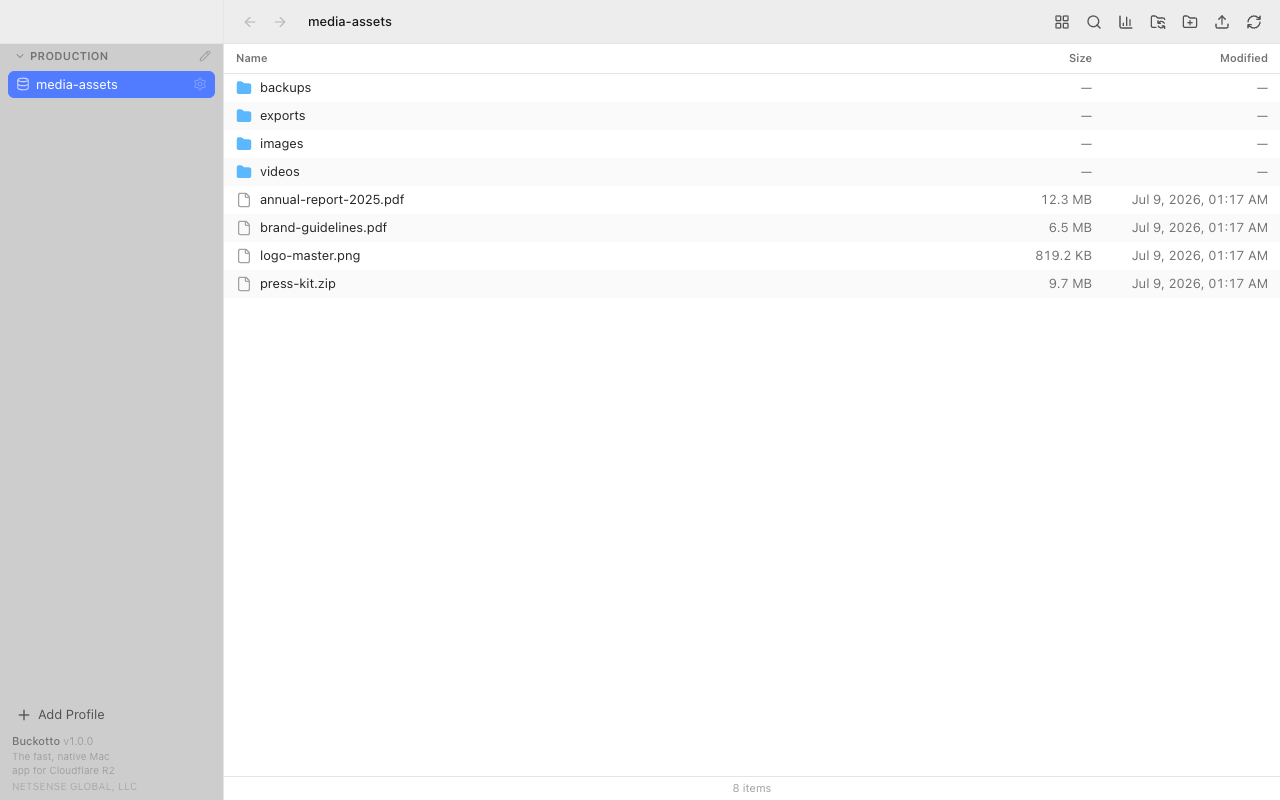
Buckotto is a Mac app built only for Cloudflare R2. It’s free, needs macOS 14 or later, and runs on Apple Silicon. Here’s how it handles the three points above:
- Pagination: the first page of a folder appears after a single request. The rest streams in while you scroll, with a live “loaded N…” counter. Only the visible rows are drawn, so scrolling stays smooth in folders with 100k+ objects.
- Search: the filter bar (
⌘F) narrows the folder you’re in. Whole bucket search uses a local index that Buckotto builds with one scan of the bucket. You can search by text, by “starts with” or with globs like*.pdf, and double-click a result to jump to its folder. - Thumbnails: the gallery view shows image thumbnails. They’re cached on disk by ETag, so each one is generated once.
Navigation works like Finder: breadcrumbs, ⌘[ and ⌘] for back and forward, ⌘↑ for the parent folder, and typing a name to jump to it. Press Space to preview images, video, audio, PDFs and text. The search index and thumbnail cache never leave your Mac.
Know the limits too. Buckotto isn’t a Finder mount, it doesn’t do two-way sync, and it only works with R2. The full list is on the features page.
How to get your R2 S3 credentials
-
In the Cloudflare dashboard, go to R2 object storage → Overview.
-
Under Account Details, select Manage next to API Tokens.
-
Choose Create Account API token, or Create User API token if it should be tied to your own user.
-
Under Permissions, pick one:
- Admin Read only or Admin Read & Write if you want to see all your buckets.
- Object Read only or Object Read & Write, limited to the buckets you choose. These can’t list buckets, so you’ll enter the bucket name in your client.
For browsing, a read-only permission is enough.
-
Create the token, then copy the Access Key ID and Secret Access Key right away. Cloudflare shows the secret only once.
-
Copy your Account ID. Press
⌘Kanywhere in the dashboard and choose Copy account ID, or find it under Account Details on the Workers & Pages page.
Your S3 endpoint is https://<ACCOUNT_ID>.r2.cloudflarestorage.com. For EU-jurisdiction buckets, it’s https://<ACCOUNT_ID>.eu.r2.cloudflarestorage.com.
In Buckotto, paste these values into the Connect to Cloudflare R2 screen. The first field takes either the 32-character Account ID or the full endpoint URL, and Buckotto recognizes the EU endpoint by itself. Your secret is stored in the macOS Keychain. If the token is object-scoped, Buckotto asks for the bucket names and checks each one.

Which one should you use?
- A quick look, nothing to install: the Cloudflare dashboard.
- Scripts, migrations and sync: rclone or the AWS CLI.
- Bucket settings and single objects from the terminal: wrangler.
- One GUI app for several storage services: a general S3 client. Read its R2 notes first.
- Browsing, searching and previewing big R2 buckets in a Mac app: Buckotto.
Sources
- Cloudflare R2: Get started
- Cloudflare R2: CLI tools
- Cloudflare R2: Objects, prefixes and folders
- Cloudflare R2: Upload objects
- Cloudflare R2: Download objects
- Cloudflare changelog: R2 dashboard updates (May 2025)
- Cloudflare changelog: Empty buckets and delete folders (April 2026)
- Cloudflare R2: Authentication tokens
- Cloudflare: Find account and zone IDs
- Cloudflare R2: S3 API compatibility
- Wrangler R2 commands
- Cloudflare R2: rclone
- rclone: Amazon S3 and Cloudflare R2
- rclone ls
- rclone ncdu
- Cloudflare R2: AWS CLI
- AWS CLI reference: aws s3 ls
- Amazon S3 API reference: ListObjectsV2
- Cloudflare R2: Error codes
- Cloudflare R2: aws-sdk-java example